Mind map studio with React Flow
Pro
About Mind map studio with React Flow
Create and organize ideas with Mind Map Studio, a React Flow mind map editor featuring hierarchical nodes, outline view, custom themes, templates, keyboard shortcuts, and export tools.
Mind Map Studio with React Flow – Build Interactive Mind Maps and Organize Ideas Visually
Mind Map Studio is an interactive mind mapping application built with React Flow, designed to help users capture ideas, organize information, plan projects, and visualize complex concepts through connected nodes and hierarchical structures.
Featuring a modern visual editor, Mind Map Studio makes it easy to create, edit, and organize mind maps using an intuitive node-based canvas. Users can build hierarchical diagrams, connect related ideas, customize visual themes, and manage entire mind maps through a combination of canvas interactions and an organized outline panel.
Whether you're brainstorming new ideas, managing project tasks, planning business strategies, or organizing research, this React Flow mind map editor provides a flexible visual workspace for turning complex information into structured, understandable diagrams.
Key Features of Mind Map Studio
1. Interactive Mind Map Builder
Create structured mind maps using an interactive React Flow canvas.
- Add new nodes to represent ideas and concepts.
- Build hierarchical parent-child relationships.
- Connect related topics through visual edges.
- Organize information into multiple branches.
- Move and rearrange nodes on the canvas.
- Select and manage multiple nodes.
The interactive canvas provides a visual environment for developing everything from simple brainstorming diagrams to complex hierarchical mind maps.
2. Hierarchical Node Management
Organize ideas using a structured parent-child node system.
Mind Map Studio allows users to expand their central concepts into multiple levels of related information.
- Add child nodes to expand an idea.
- Create sibling nodes at the same hierarchy level.
- Rename existing nodes.
- Delete unnecessary nodes.
- Duplicate existing nodes.
- Copy and paste branches.
This hierarchical structure makes it easier to break down large topics into smaller, manageable sections.
3. Outline View for Structured Organization
Manage your mind map through a dedicated outline panel.
The outline view provides a structured representation of the entire diagram, allowing users to navigate ideas without relying exclusively on the visual canvas.
- View hierarchical node structures.
- Expand and collapse sections.
- Navigate between different topics.
- Organize project categories and subcategories.
- Understand the overall information hierarchy.
This feature is particularly useful when working with large mind maps containing multiple branches and nested topics.
4. Search and Navigation
Find specific ideas and topics within your mind map using the built-in search functionality.
Search makes it easier to locate nodes in larger diagrams, helping users navigate complex structures and work with specific sections more efficiently.
5. Custom Themes and Design System
Personalize the appearance of your mind maps using customizable design options.
- Choose different visual themes.
- Customize the overall diagram appearance.
- Adjust connection styles.
- Maintain a consistent visual design.
- Explore design system settings.
The editor also provides a connection-style option, including curved connections, for creating more visually organized diagrams.
6. Curved Node Connections
Create visually appealing relationships between ideas using curved connection lines.
Connections play an important role in mind mapping because they communicate relationships between concepts and their parent topics.
Mind Map Studio includes configurable connection styling, helping users create cleaner and more readable mind maps.
7. Keyboard Shortcuts for Faster Editing
Speed up your mind mapping workflow with built-in keyboard shortcuts.
The editor provides shortcuts for common diagram editing operations, including:
- Enter: Add a child node.
- Tab: Add a sibling node.
- F2: Rename a node.
- Delete: Remove a selected node.
- Ctrl/Cmd + Z: Undo an action.
- Ctrl/Cmd + Y: Redo an action.
- Ctrl/Cmd + C: Copy a branch.
- Ctrl/Cmd + V: Paste a branch.
- Ctrl/Cmd + D: Duplicate a node.
- Shift + Drag: Select an area.
These shortcuts make repetitive editing tasks faster and provide a more efficient mind mapping experience.
8. Ready-to-Use Mind Map Templates
Get started quickly with predefined mind map templates.
Templates provide structured starting points for common mind mapping activities, allowing users to explore different layouts and organizational approaches without building every diagram from scratch.
They are particularly useful for project planning, brainstorming, business organization, and task management.
9. Undo and Redo Functionality
Experiment with different mind map structures while maintaining control over editing changes.
The undo and redo controls allow users to reverse or restore previous editing actions, making it easier to refine diagrams and explore alternative organizational structures.
10. Export and Diagram Sharing
Export your completed mind maps for documentation, presentations, and further use.
The editor includes dedicated export controls, making it easier to take your visual diagrams beyond the editing workspace.
This is particularly useful for sharing project plans, brainstorming results, research structures, and organized ideas with other people.
11. Multi-Node Selection and Editing
Manage multiple elements within the mind map using area selection.
The editor supports selecting multiple nodes through a selection area, providing a more convenient way to work with larger diagrams and organize related groups of ideas.
12. Interactive Canvas and Minimap
Navigate your mind maps using built-in canvas controls and diagram navigation tools.
- Zoom in and out.
- Fit the diagram to the viewport.
- Navigate large mind map structures.
- View the overall diagram using the minimap.
- Work with different sections of the canvas.
These controls help maintain a clear overview when working with complex mind maps containing multiple hierarchical levels.
13. Project Planning and Task Organization
Use mind maps to structure project information into meaningful categories.
For example, a project planning mind map can organize information into:
- Project Plan: The central project concept.
- Goals: Objectives, targets, and expected outcomes.
- Tasks: Requirements, design, development, and quality assurance.
- Milestones: Kickoff, Alpha, Beta, and Release.
- Resources: Team members, tools, and budget.
- Deadlines: Design freeze, code freeze, and launch day.
This example demonstrates how a mind map can transform a project plan into a connected visual structure that is easier to understand and manage.
What Can You Build with Mind Map Studio?
Mind Map Studio can serve as a foundation for several types of visual planning and organizational applications.
Project Planning Mind Maps: Break projects into goals, tasks, milestones, resources, and deadlines using hierarchical visual structures.
Brainstorming Tools: Capture ideas, explore relationships between concepts, and organize brainstorming sessions.
Business Strategy Maps: Visualize business objectives, strategic priorities, departments, and operational plans.
Study and Learning Mind Maps: Organize academic subjects, research topics, notes, and learning materials into connected structures.
Product Roadmaps: Map product features, development tasks, release milestones, and strategic objectives.
Knowledge Mapping Applications: Build hierarchical knowledge structures that connect related concepts and information.
Personal Productivity Tools: Organize goals, daily tasks, long-term plans, and personal projects in one visual workspace.
Built with React Flow
Mind Map Studio demonstrates how React Flow can be used to create advanced mind mapping applications beyond traditional flowcharts and workflow editors.
React Flow provides the interactive node-based canvas, connections, and diagram manipulation capabilities needed to build flexible visual editors. By combining these capabilities with hierarchical node management, outline navigation, custom styling, and keyboard shortcuts, developers can create sophisticated mind mapping experiences.
For developers building mind map applications, visual brainstorming tools, project planning software, or knowledge management platforms, this example provides a practical reference for extending React Flow into a specialized visual editor.
Who Can Benefit from Mind Map Studio?
- React Developers: Explore hierarchical node structures, custom edges, and interactive diagram editors.
- Frontend Engineers: Build modern mind mapping and visual organization interfaces.
- Project Managers: Organize project goals, tasks, milestones, and resources.
- Students and Educators: Structure learning materials and visualize complex subjects.
- Product Designers: Plan product ideas, features, and development roadmaps.
- Business Professionals: Organize strategies, business processes, and brainstorming sessions.
- SaaS Founders: Explore the development of visual planning and productivity applications.
Explore More React Flow Examples with VisualFlow
VisualFlow provides a growing collection of React Flow examples, interactive diagram editors, workflow builders, and reusable visual development templates.
From mind mapping applications and project planning tools to AI workflow builders, automation platforms, and specialized diagram editors, VisualFlow helps developers explore what's possible with the React Flow ecosystem.
Explore more examples and templates at:
Organize your ideas. Visualize your thinking. Build more with React Flow.
Key Features & Capabilities
Architecture & Technologies
Related Blueprints
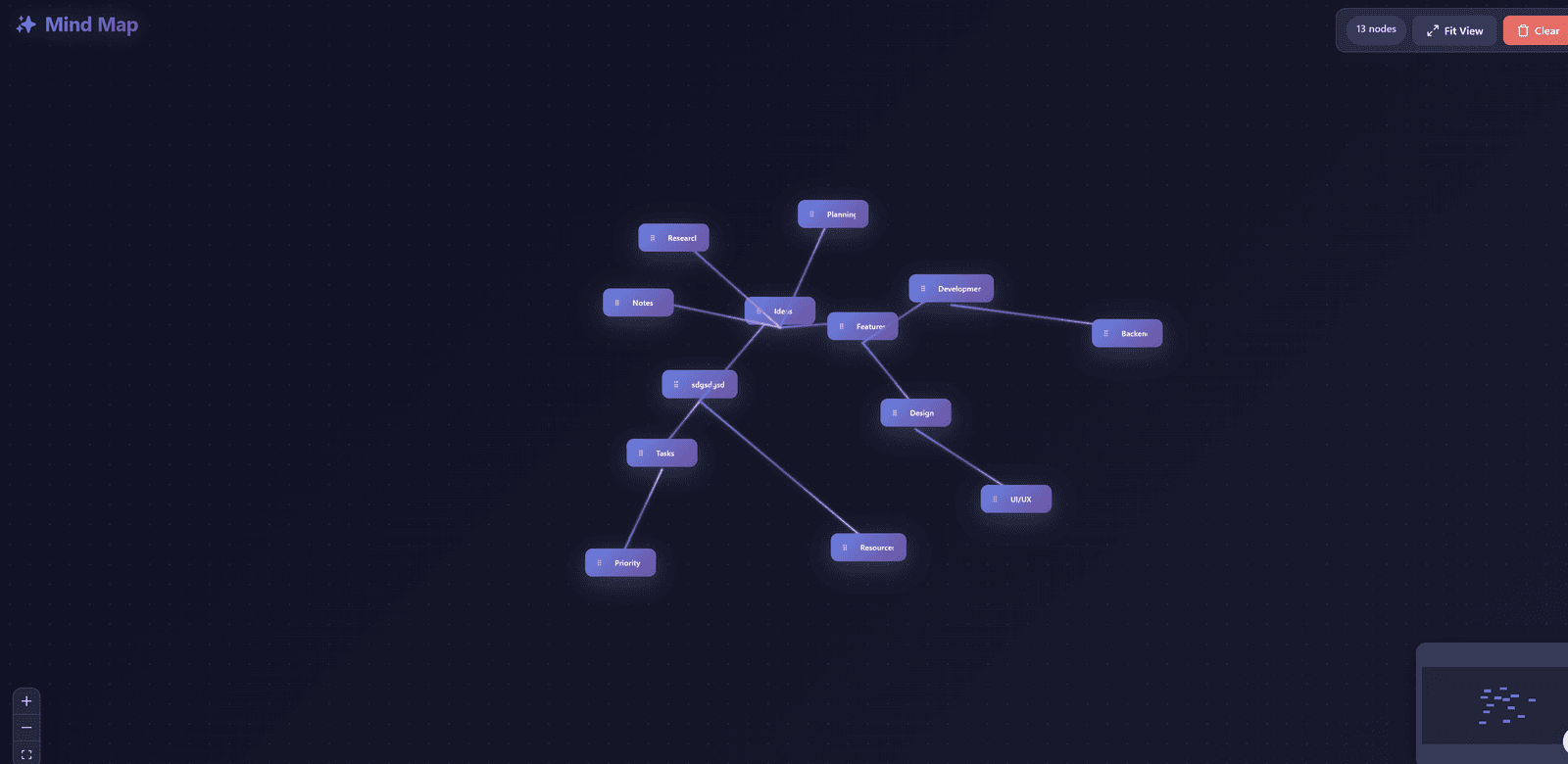
React flow concept map
Interactive concept mapping tool for organizing knowledge and visualizing relationships between ideas. Create hierarchical concept maps with drag-and-drop nodes, custom connections, and rich text editing. Perfect for education, research, brainstorming, and knowledge management with intuitive interface for building complex conceptual relationships.
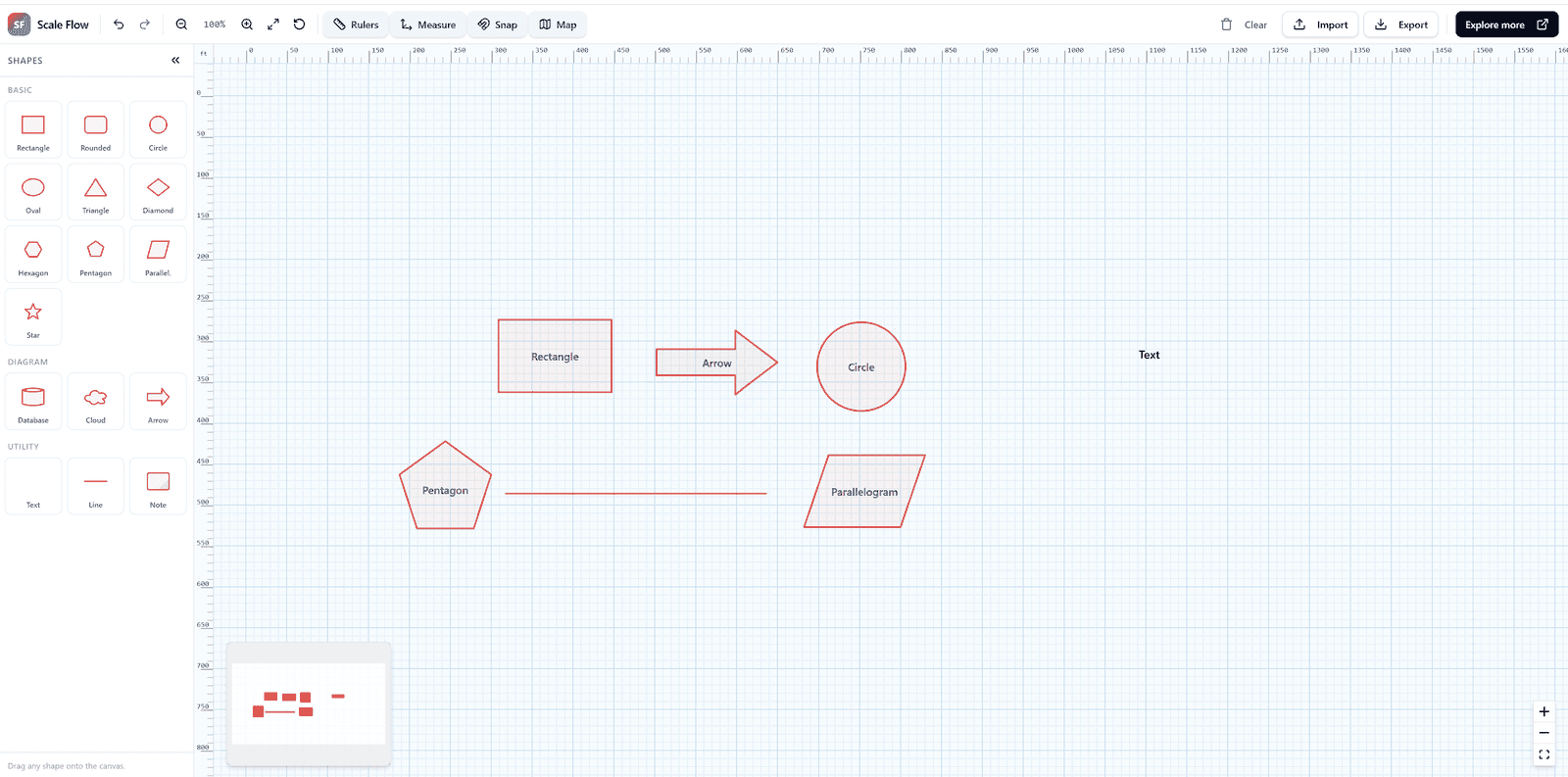
Scale Studio Pro Enterprise with React flow
An enterprise-grade, massive scale diagramming studio built with React Flow. Engineered for performance with thousands of nodes, advanced minimap navigation, and high-fidelity zoom.
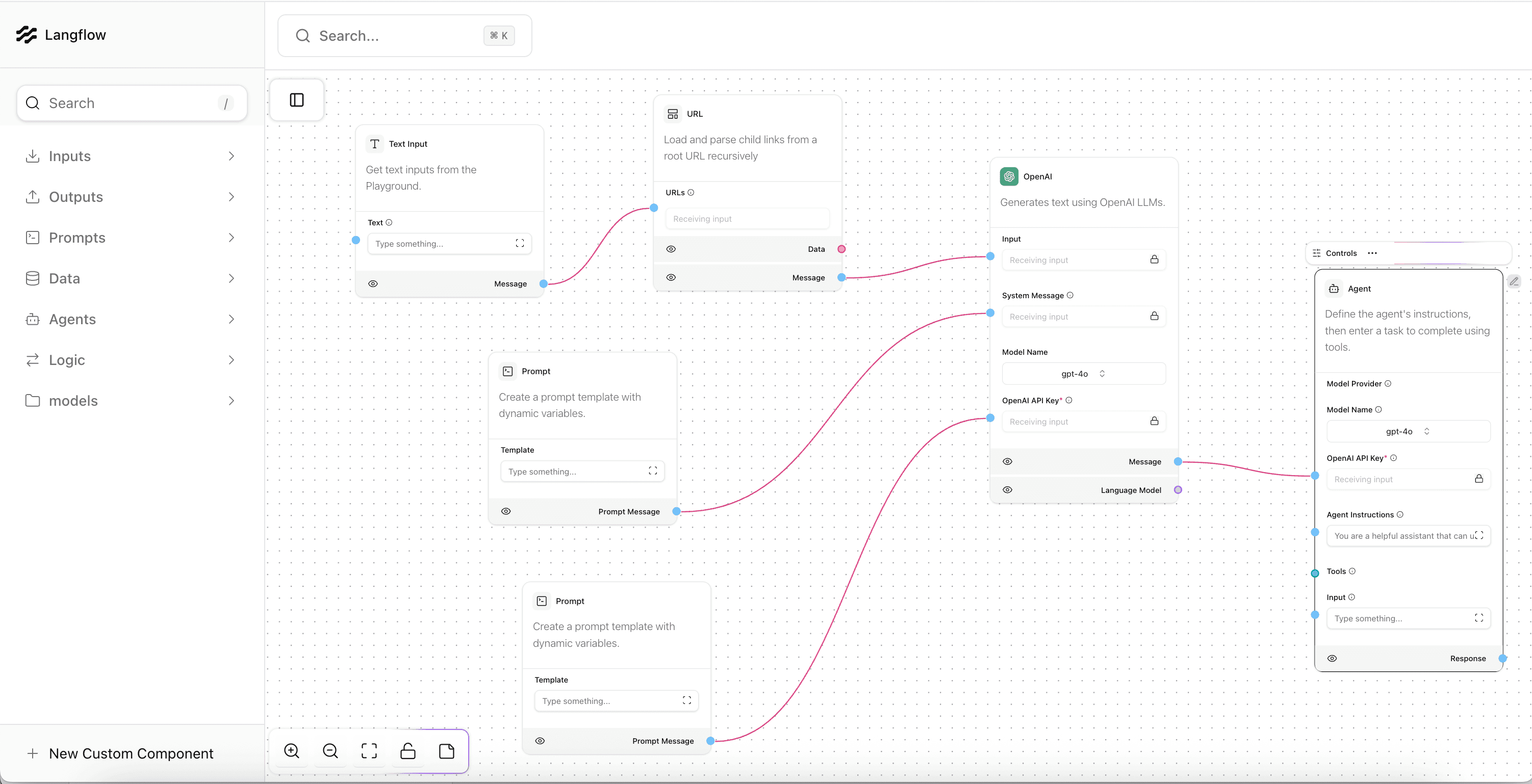
React flow Langflow builder
Langflow is a low-code AI application builder that enables developers to create sophisticated AI workflows, agents, and retrieval-augmented generation (RAG) applications without extensive coding. Build and deploy LLM-powered applications through intuitive visual interface with support for all major large language models, vector databases, and growing library of AI tools. Features prompt templating, model comparison, vector database integration, and production deployment tools for building AI chatbots, content generation systems, and complex reasoning agents.